Settings
Settings has six tabs (seven for the platform administrator). Owners can change everything; members can view most tabs and change their own password.
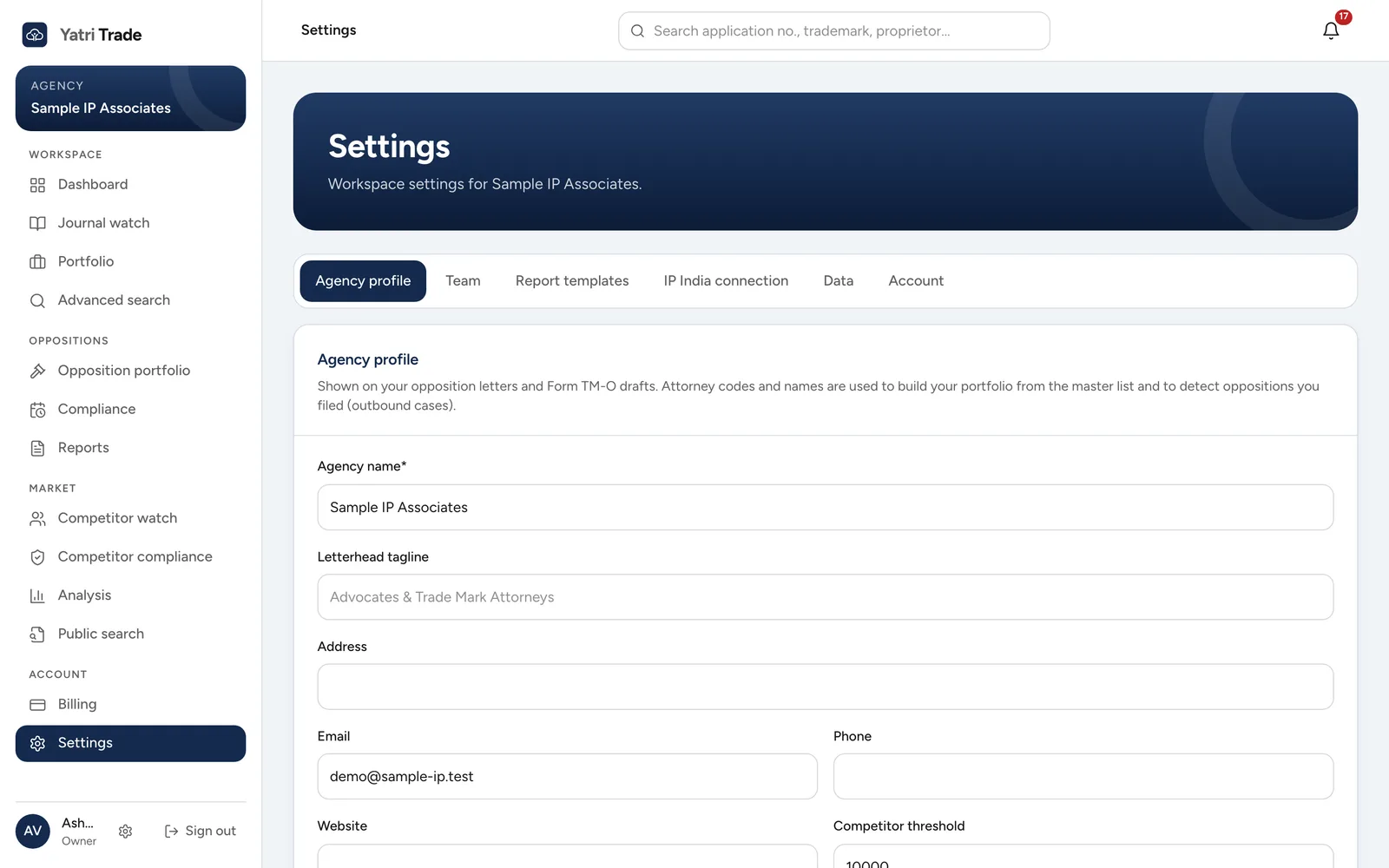
Settings opens on Agency profile. The tabs along the top lead to Team, Report templates, IP India connection, Data and Account.
Agency profile
| Field | Used for |
|---|---|
| Agency name, tagline, address, email, phone, website | The letterhead on letters and Form TM-O drafts |
| Attorney / agent codes | Finding your firm's applications for the portfolio |
| Attorney names | Finding your firm's applications and the oppositions your firm filed |
| Competitor threshold | Which attorneys count as high-volume in Competitor watch |
Write attorney names exactly as the e-Register shows them. Separate several names with a semicolon.
Team
Owners add a colleague with their name, email, a starting password and a role. Give the colleague the password so they can sign in and change it. Remove a colleague with Remove and confirm. Your plan sets how many users you can have; see Plans and billing.
Report templates
There are two Word templates: the recommendation letter and the Form TM-O draft.
To use your own wording or layout:
- Download the current template.
- Edit it in Word. Keep the placeholders in curly braces where you want the details to appear, for example {journalTmName} for the conflicting mark or {oppositionDeadline} for the last date to oppose.
- Choose Upload .docx and pick your file.
The page lists every placeholder. Reset goes back to the built-in template.
IP India connection
See IP India connection.
Data
Sync portfolio from attorney codes and Sync oppositions from the register do the same as the buttons in Portfolio and Opposition portfolio. Both also run by themselves whenever new data arrives.
The person who runs Yatri Trade for all firms (the platform administrator) also sees tools to load new public data and to add older journals. See Where the data comes from.
Account
Change your password here.
Subscriptions
Only the platform administrator sees this tab. It lists every agency with its plan, status, end date and usage, and the total received so far.
- Change an agency's plan with the list in the Plan column.
- 14-day trial gives an agency a fresh trial, for example after a sales call.
- +30 days adds a month to an agency's paid period without a payment.
- End access closes the app for an agency straight away, apart from Billing, for example after a payment bounces. A new trial or +30 days opens it again.
- Record payment is for bank transfers and UPI payments received outside the app. Choose the plan and period, add the bank or UPI reference, and leave the amount empty to use the plan price. The agency's plan is extended and a numbered GST invoice appears in its Billing page.
Plans and prices sets each plan's name, monthly and yearly price before GST, and its limits on users and marks. Leave a limit empty for unlimited. A change is saved when you leave the field and applies to new payments.