Opposition portfolio
The opposition portfolio lists every opposition your firm is handling.
An inbound case is one where someone opposes your client's application, so your client is the applicant. An outbound case is one where your firm opposes another application, so your client is the opponent.
Adding cases
There are three ways to add a case:
- Sync from oppositions register adds inbound cases for oppositions filed against marks in your portfolio, and outbound cases for oppositions filed by your attorneys. Yatri Trade also does this by itself after every new journal and every Monday's register check.
- New case lets you enter the details yourself.
- Ticking Track as outbound opposition when you generate a report adds the case for you.
The case list
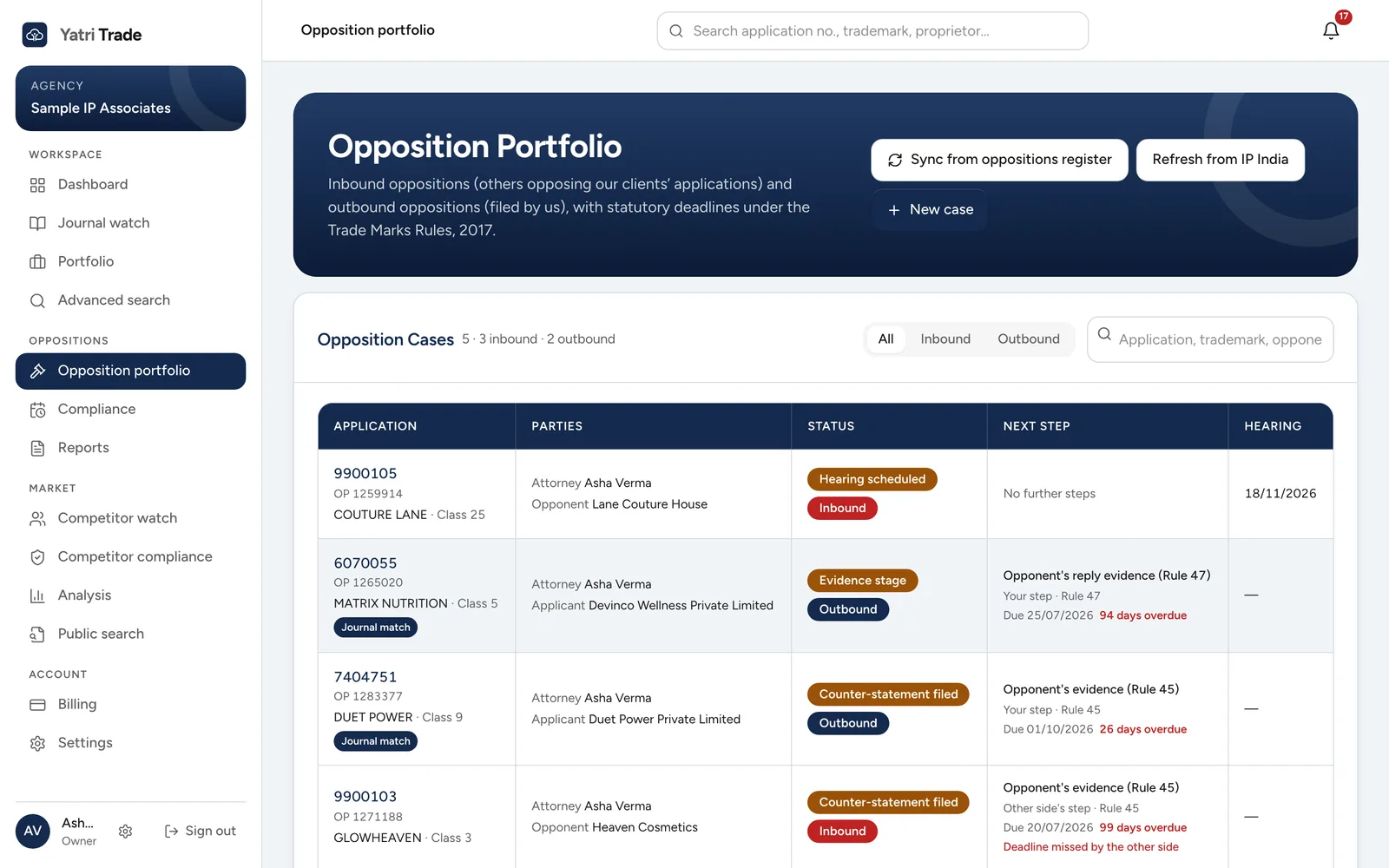
The case list. The last column but one shows the next step, whose step it is, the rule, the due date and the days left. The red line under GLOWHEAVEN says the other side missed its deadline.
Use the All, Inbound and Outbound buttons and the search box to narrow the list. The list shows 25 cases at a time; use Next and Prev to move through it. For each case the table shows:
- Application: the application and opposition numbers, the trademark and class, and a Journal match tag when journal watch found the mark,
- Parties: your attorney, and the opponent (inbound) or the applicant (outbound),
- Status: the case status and whether it is inbound or outbound,
- Next step: what has to be filed next, whose step it is and under which rule, the due date and the days left, or "No further steps" for a closed case,
- Hearing: the hearing date, if one is fixed. Yatri Trade fills it in when IP India lists the hearing on its hearing board.
If the other side has missed a deadline, the case says so in red. Point at the note, or open the case, for what that means, for example that the opposition is deemed abandoned under Rule 45.
Status colours follow your side of the case. Green is a good result for your client, red a bad one, amber means someone still has to act. So in an outbound case, "Application abandoned" is green because the mark you opposed has gone; in an inbound case the same words are red.
Yatri Trade holds every Trade Marks Journal from 2014 onwards. A case whose mark is not in any of them (it was advertised before 2014, or not yet advertised) shows "Not in journals since 2014" instead of a name. Look such marks up on the e-Register through Settings, IP India connection.
Working on a case
Select an application number to open the case. You will see the attorney, the trademark details, the record from the oppositions register with the Registry's letters, and the history of every change.
To move a case forward, enter the date of each step as it happens:
- notice of opposition served,
- counter-statement filed,
- opponent's evidence filed,
- applicant's evidence filed,
- reply evidence filed,
- hearing date.
Choose a status and save. Yatri Trade works out the next deadline from the date you entered. How deadlines are worked out lists the periods.
Cases added from the register show a note asking you to confirm the dates, because the register does not show every step.
Trademark file opens the full record of the mark. To delete a case, choose Delete and confirm.
Keeping cases up to date with IP India
Yatri Trade checks the Registry every Monday for each case that has an opposition number. When IP India sends the opposition notice, the case gets its notice date and the counter-statement deadline starts. When the Registry records a withdrawal, abandonment or decision, the case status changes.
To check straight away, choose Refresh from IP India at the top of the page for all cases, or inside a case for that case only.