Portfolio
The portfolio is the list of your clients' trademarks. Journal watch, compliance and analysis all use it, so keep it complete.
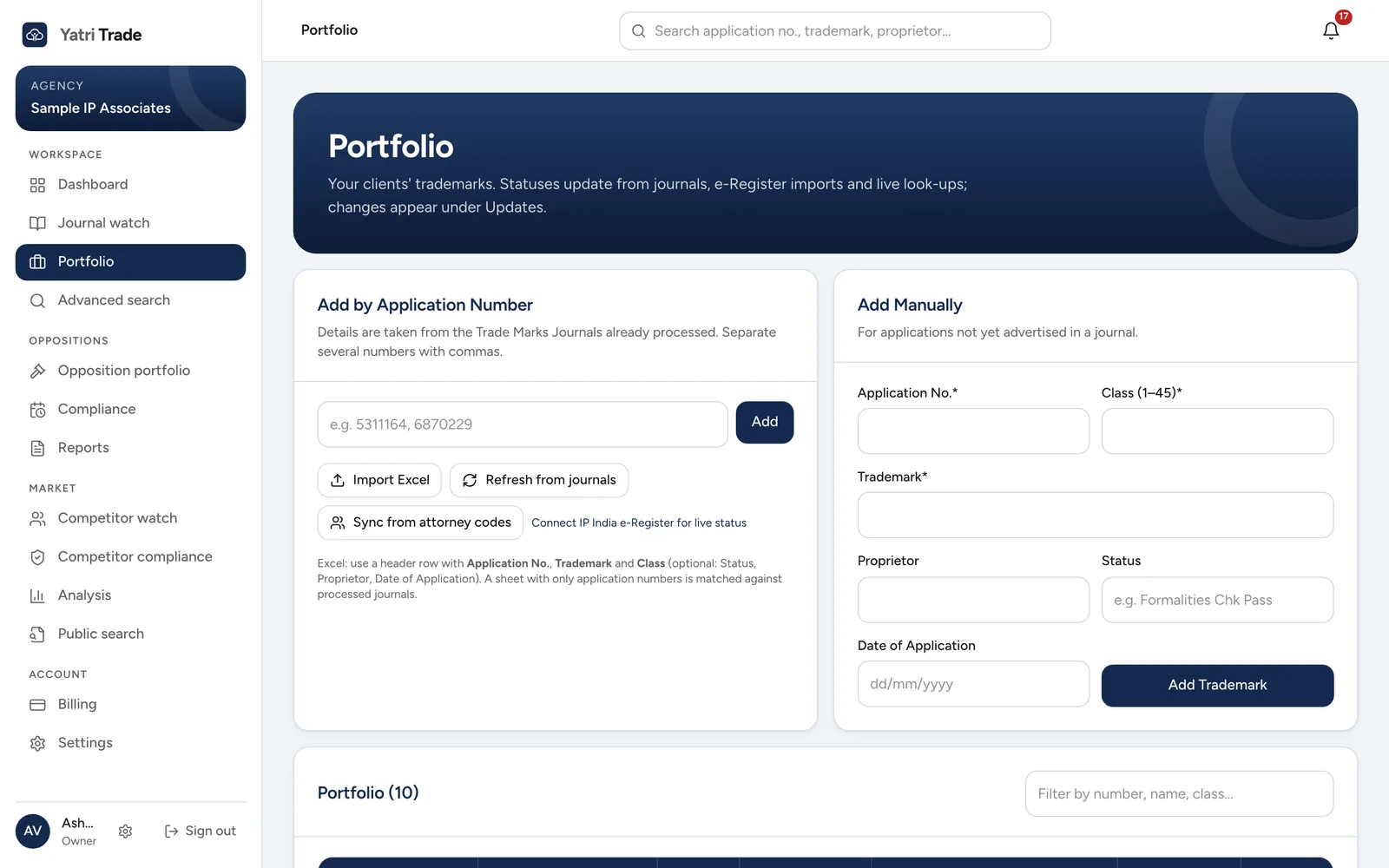
The Portfolio page. Add marks by application number on the left or by hand on the right; your marks are listed underneath.
Adding marks
| Option | When to use it |
|---|---|
| Sync from attorney codes | Brings in every application filed under the agent codes and attorney names in your Agency profile. Set those first in Settings. This also happens by itself whenever new journals arrive, so use the button when you want it straight away |
| Add by Application Number | Type one or more application numbers separated by commas. Yatri Trade fills in the details from its records |
| Add Manually | For an application that is not yet published. Enter the application number, class (1 to 45) and trademark. Proprietor, status and date are optional |
| Import Excel | Upload your client list |
If an application number is not found, Yatri Trade tells you so you can add it manually.
Importing from Excel
Use a sheet with a header row. Yatri Trade reads these columns:
| Column | Needed |
|---|---|
| Application No. | Yes |
| Trademark | Yes, unless the mark is already in Yatri Trade's records |
| Class | Yes, unless the mark is already in Yatri Trade's records |
| Status, Proprietor, Date of Application | Optional |
A sheet with only application numbers also works: each number is looked up in Yatri Trade's records. After the import, a message lists what was added, what was already there and what could not be found.
Keeping statuses current
Statuses update on their own when:
- one of your marks is advertised in a journal ("Advertised in Journal 2283 (19/10/2026)"),
- newer e-Register data is loaded into Yatri Trade.
To check the e-Register directly, connect to IP India in Settings and choose Refresh live from e-Register. See IP India connection.
Every change is recorded and shown in Updates.
Finding and removing marks
Use the filter box above the table to find a mark by number, name or class. Select an application number to see the full record, including hearings, the logo, oppositions and status history. To remove a mark, use the bin button in its row and confirm.
Hearings
When IP India lists a hearing for one of your marks, the mark's panel shows it under Hearings listed by IP India, with the date and the kind of hearing. The hearing also appears in Compliance.
Logos
The panel shows the mark's logo when it has one. Yatri Trade takes it from the journal that advertised the mark, and each night it fetches the logos of marks you added that day. New journals are then checked for logos that look like yours (see Journal watch).
If a mark has a logo but the panel says there is no picture yet, it was never advertised in a journal Yatri Trade has read. Choose Upload logo and pick a PNG or JPEG file of up to 5 MB. A clear picture of the logo on a plain background works best. Replace logo swaps it for another picture, and Remove uploaded logo goes back to the picture from the journal, if there is one.